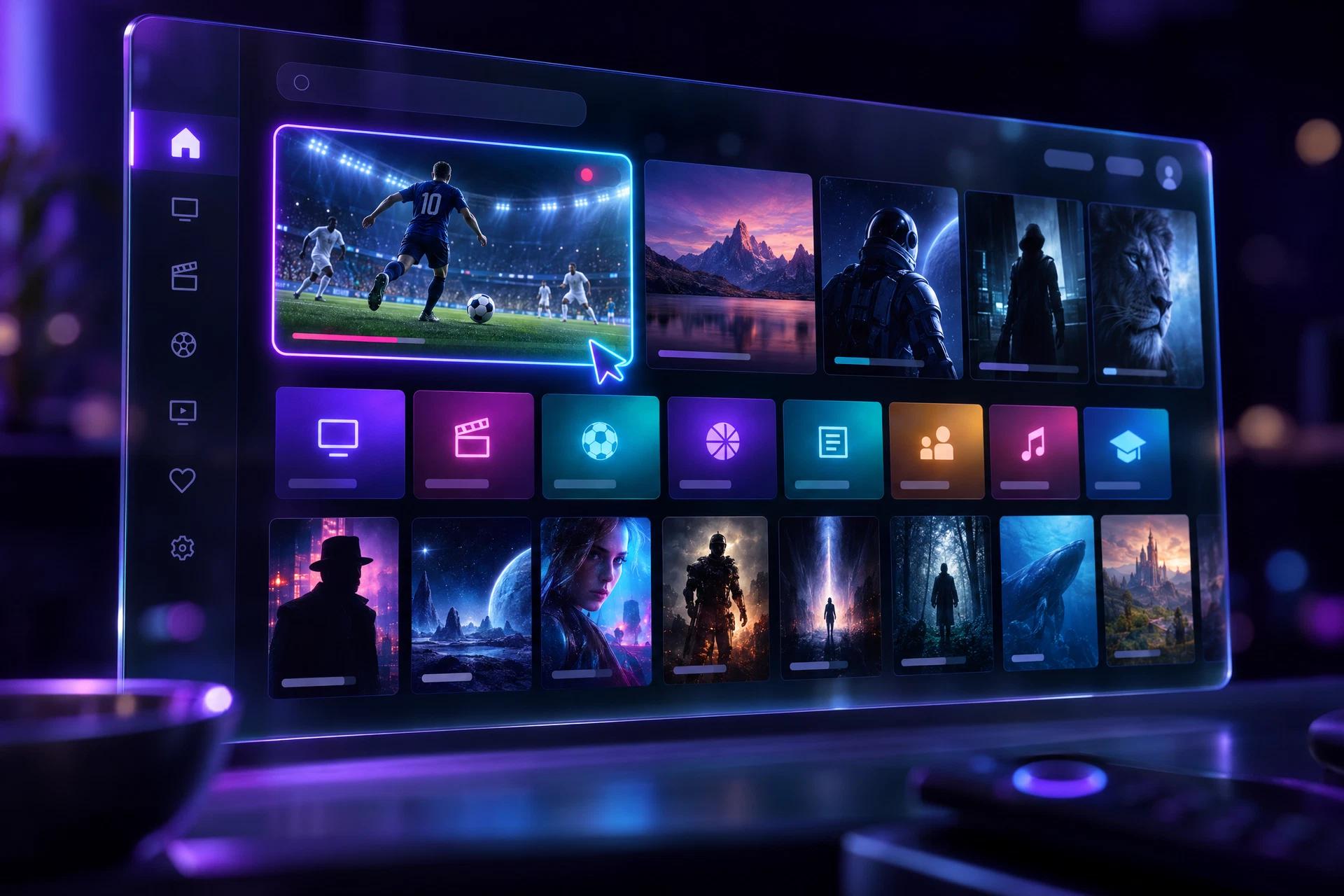
Almost every buffering complaint on the internet is really a router complaint. The stream itself is fine — the last ten metres of Wi-Fi are not. This guide gets you playing in 4K in about ten minutes on any screen, and finishes with the settings that keep picture quality when the whole family is online.
Before you start: the two-minute checklist
- A plan that suits your screen: 6 months at $40, 12 months at $59 or 24 months at $99 — all include the full 20,000+ channel lineup and 80,000+ movie & series library.
- An M3U/Xtream player app — most are free. We'll send the right one for your device on WhatsApp, with your credentials preconfigured.
- 5 GHz Wi-Fi or Ethernet. 4K needs roughly 25 Mbps of stable headroom. Ethernet beats the best Wi-Fi on a good day.
Amazon Firestick
Turn on Developer Apps in the settings, install our recommended player via the Downloader app, then paste the server URL, username and password from your activation message. The first playlist sync takes a minute or two — after that, opening the app goes straight to live TV. Set the player to "video quality: automatic" and let adaptive bitrate handle the rest.
Samsung and LG Smart TVs
Install the player app from the TV's store (Samsung Tizen or LG webOS). You'll enter the same three credentials with the remote. Tip: name your favourites folder "Sport" before the first big match — navigating 20,000 channels with a remote is a two-minute game otherwise. Both platforms support 4K output; make sure the TV's picture mode is set to standard rather than "dynamic" for accurate HDR.
iPhone, iPad and Apple TV
Download the app from the App Store, enter credentials, and enable AirPlay if you want the big screen at home. On cellular, keep quality capped at FHD to stay gentle on your data plan.
Android phones, TV boxes and Xiaomi sticks
The Play Store version of the player works identically — server, username, password, sync. On TV boxes, give the app background permission so playlists refresh without reopening.
Windows and Mac
Desktop players mirror the same setup. A laptop on the sofa with HDMI to the TV is a perfectly good 4K client — wired connection recommended.
The settings that actually stop buffering
- Move the device closer to the router, or drop to 5 GHz — the 2.4 GHz band is where 4K streams die at family peak hours.
- Restart the router weekly. Unglamorous, effective.
- Keep one Ethernet cable in the media corner for match nights.
- If a single channel still stalls during a mega-event, message us on WhatsApp — we move you to a backup source within minutes, and that fix is part of the subscription.